 COME
COMEPrepare a useful COME help screenshot
A help screenshot should show the relevant error and context while hiding secrets and unrelated personal details. Keep a private original if you need a record.
Frame the problem
Capture the screen containing the exact message, with enough surrounding interface to identify the task. A picture of the home page alone rarely explains an installer or account failure. Include the time separately if it is relevant.
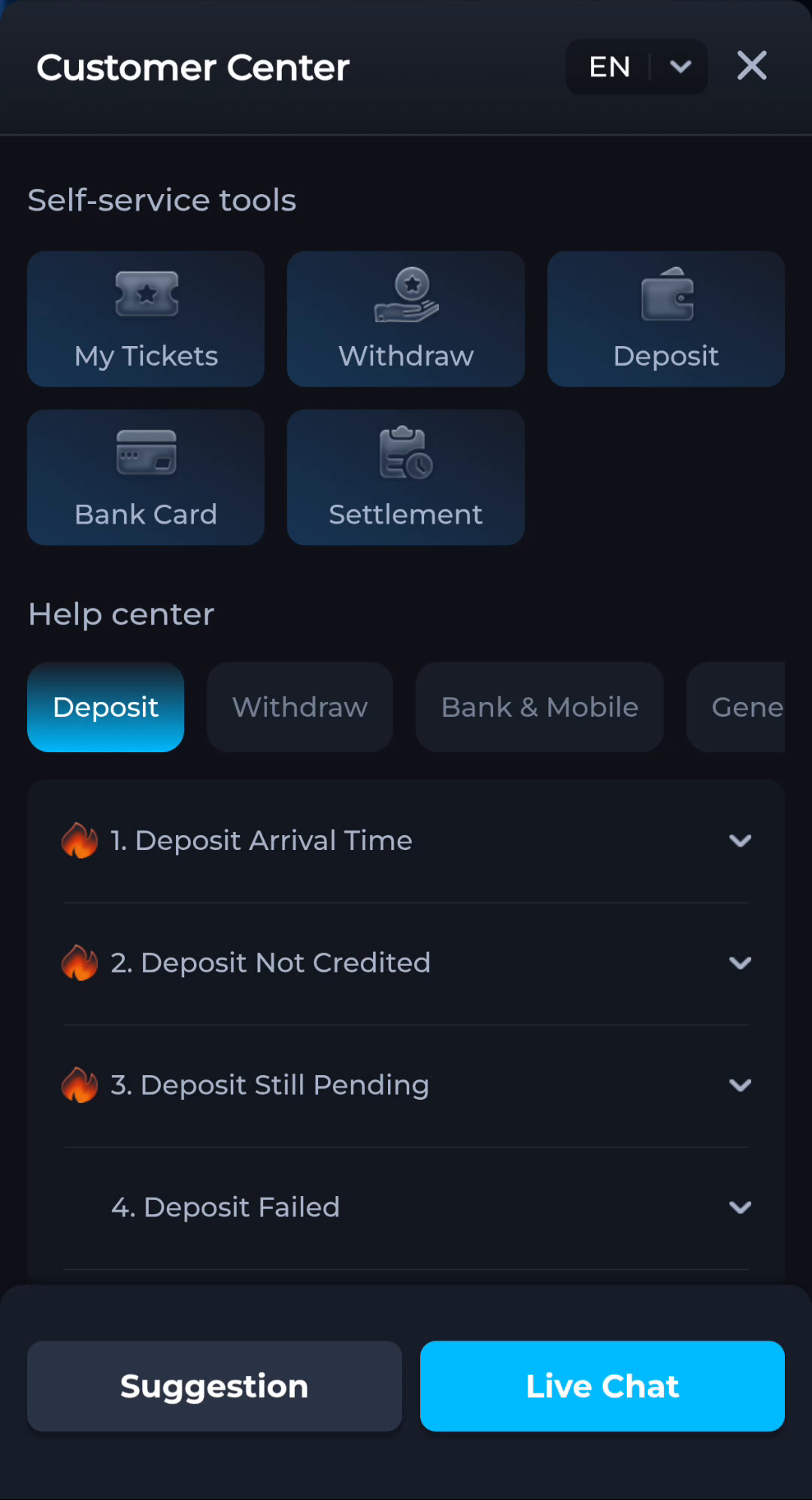
Remove sensitive material
Hide passwords, OTPs, payment PINs, full card details and unrelated account information before sharing. Do not obscure the actual error text or the field label needed to explain the issue. Review the edited image before sending it.
Choose the proper destination
Use the help route displayed in the service, and check whether attachments are supported. A screenshot does not itself submit a ticket or guarantee a resolution. Keep the accompanying description concise and factual.
A useful next step
Pair the redacted image with the action, device and exact stage where the problem occurred.